Set up this device
For the adult who looks after this phone or iPad. Choose what the menu shows and how the tools work on this device. The app's menu does not lead here, so a child cannot change it by accident.
💡 On an iPad or iPhone, open this guide from the
Simplify app on the Home Screen: tap ℹ️ How to use this
app at the bottom of the app. Then Open
set-up opens the app's own set-up. Safari keeps its own
settings, apart from the app.
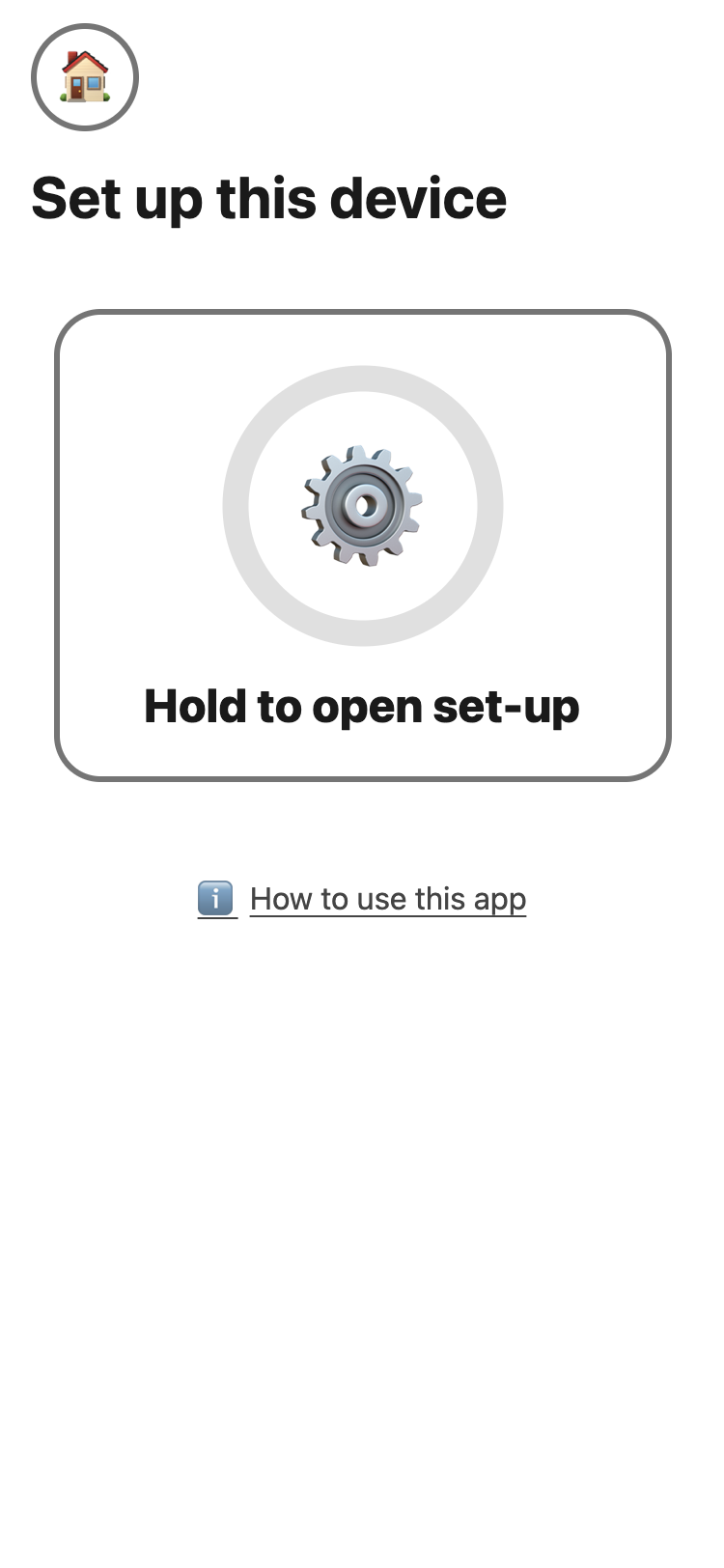
- Press and hold Hold to open set-up until the ring is full. If you let go early, nothing happens.
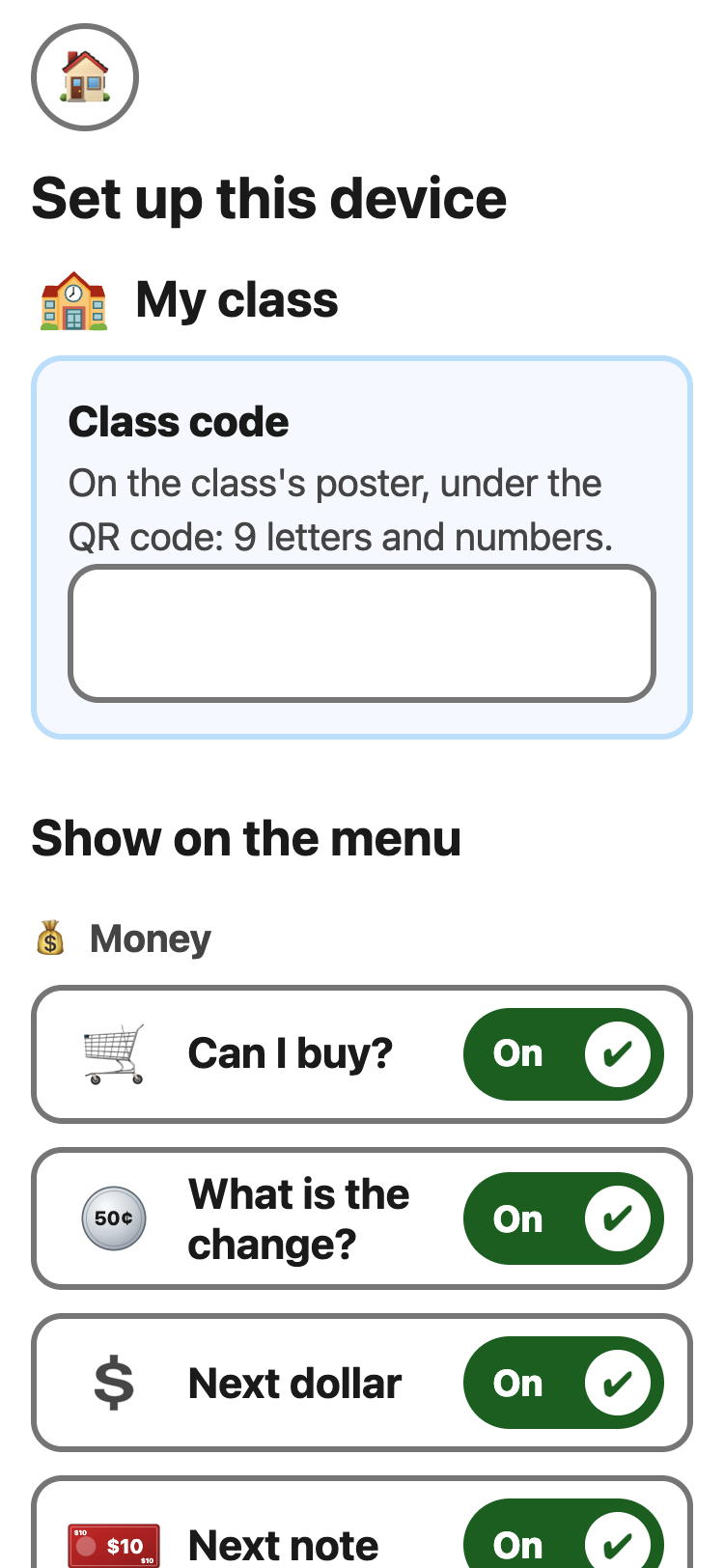
- My class is at the top: type the class code there. See My class.
- Tap a row to turn it On or Off. Each change is saved at once. Put it back undoes it.
- Show on the menu: turn a tool off to take it off the menu. It is tucked away under a small + beside its group's name, for when it is needed (the menu).
- Pictures only (hide words): for a student who does not read. Screen readers still read the words.
- Speak button on cards: the Speak button on I need and Show a card. It plays a recorded Indian English voice, the closest Google offers to Singapore English. Words you type yourself use the phone's own voice.
- Steps: Fewer steps for a routine the student knows well.
- I need and Show a card: which cards show. For Show a card, also the stop name and the second line.
Every visit starts with the hold button again.
💡 A shared iPad and a student's own phone can
be set up differently. Keep personal details, like a stop near home,
off a shared iPad.