 My class
A page from the student's class teacher or coach, one screen at a time. It opens without internet too.
Add the class to this device 🔗
- Scan the class's QR code with the camera.
- The app asks Is this your class? Check the name, and tap ✔ Yes.
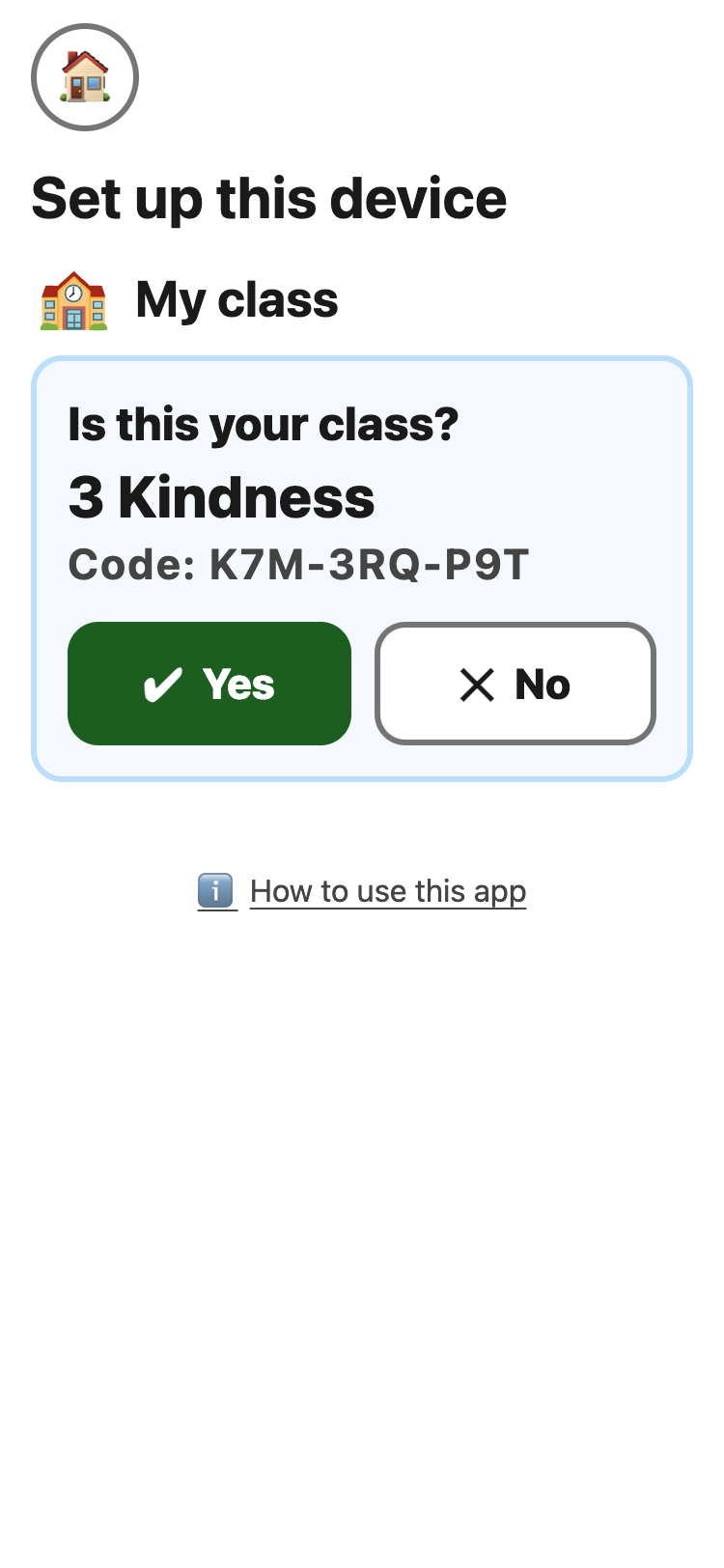
Or type the code: on the set-up page, under My class at the top, type the 9 letters and numbers printed under the QR code. Capitals, dashes and spaces don't matter, and there is no button to press. A wrong code says Can't find this class: check the code, or tap Try again once the device has internet.
A device follows one class. Scanning another class's QR code asks Is this your class? again; Yes puts the new class in the old one's place, and Put it back on the message undoes it.
Read the page 🔗
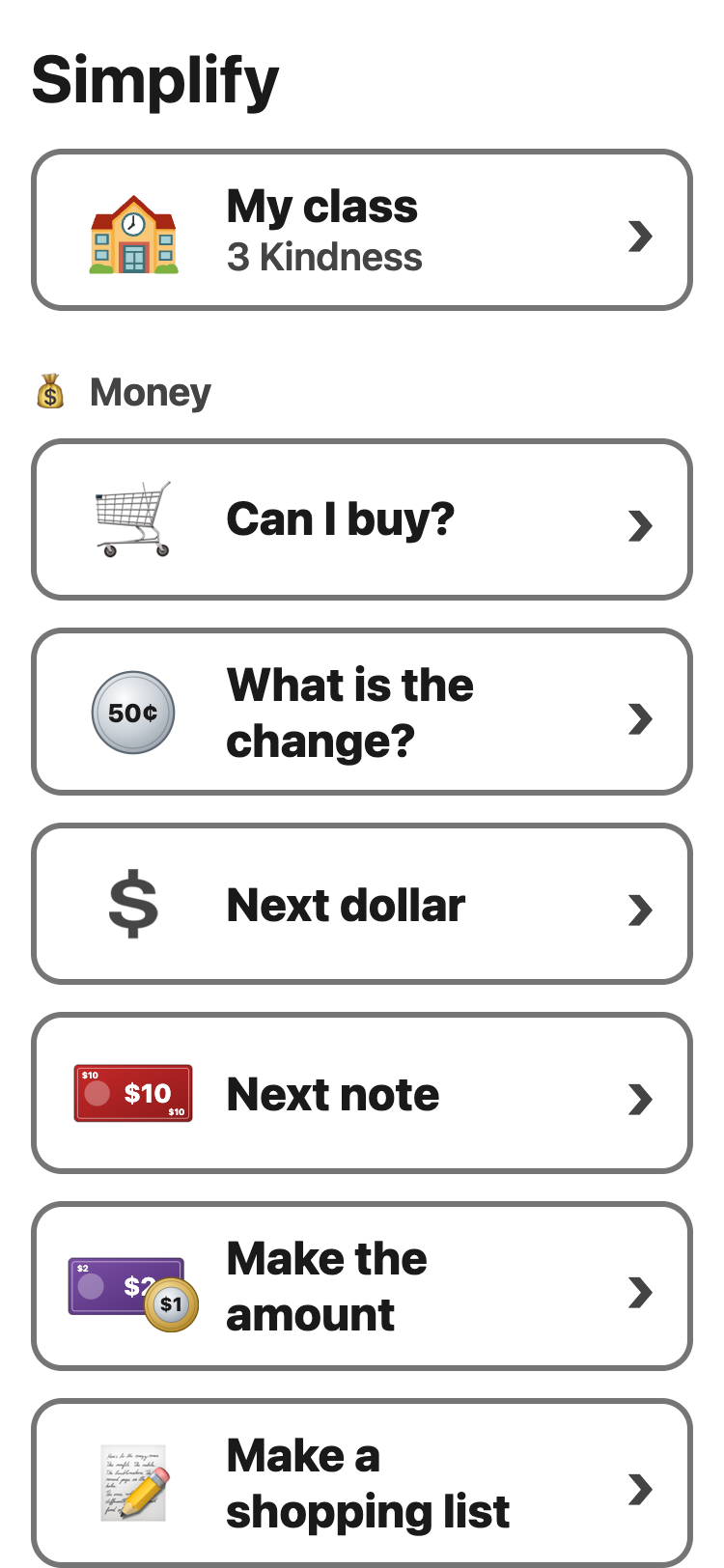
- Tap My class at the top of the menu.
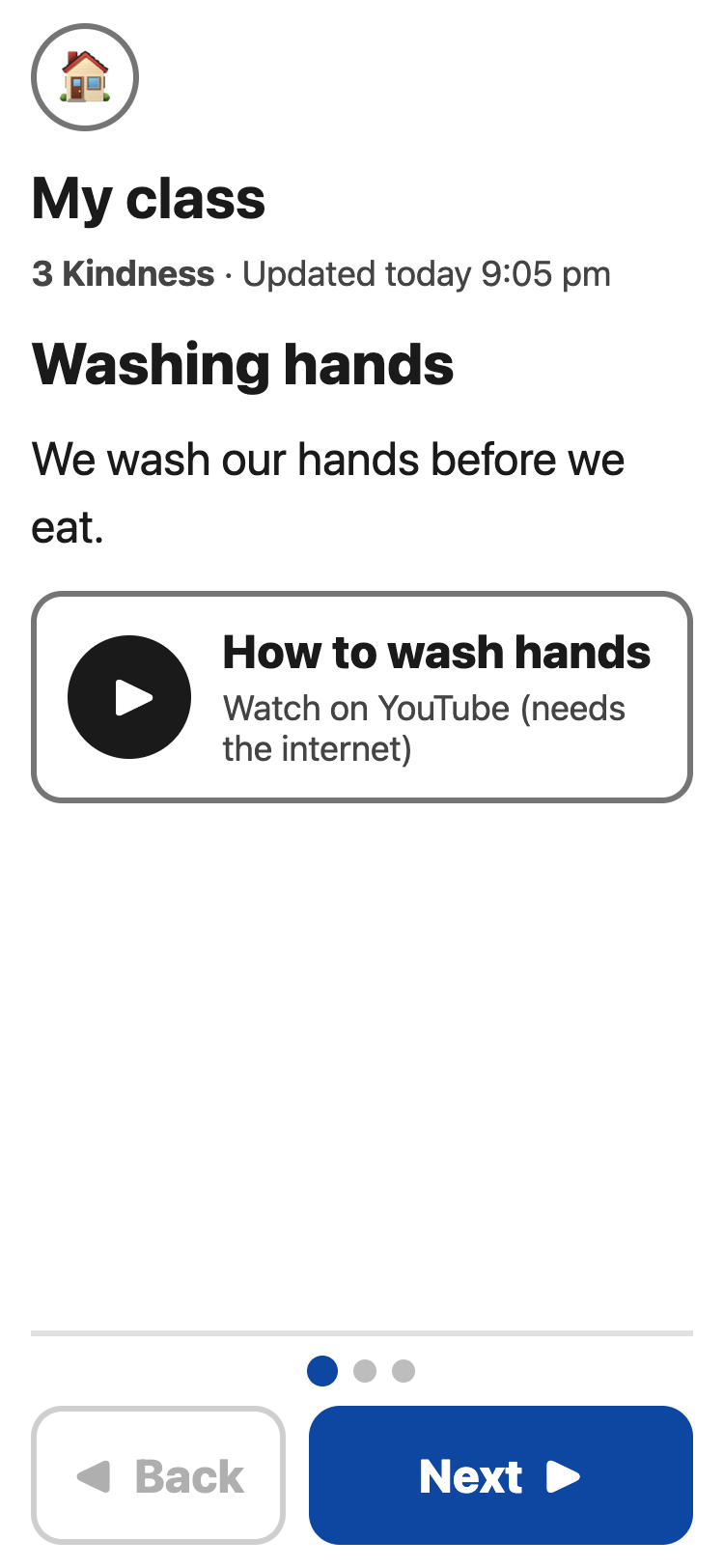
- Next ▶ shows the next screen, ◀ Back the one before. ✔ All done on the last screen goes back to the menu.
- With internet, a new page from the coach shows as soon as it is published, if My class is open. The coach can also choose to open My class at once on every screen that has Simplify open — for example, when the whole class should look together. Without internet, it shows the copy it saved.
- A video from the coach never plays by itself. Tap ▶.
- Nothing from your coach yet: the class has no page yet.
To change or leave the class: the set-up page, My class, then Change or Leave. Put it back on the message undoes Leave.
What it sends 🔗
To get the page, the app sends only the class code — and, like any website, the device's internet address. While Simplify is on screen it also listens for a new page, again with only the class code. Nothing the student types or taps is sent, and nobody — not even the coach — can see who has the app open.
A YouTube video shows as a card: Watch on YouTube (needs the internet). Nothing loads from YouTube until someone taps it. After the tap, YouTube (Google) gets the device's internet address and which video is watched.
More in Privacy.